How to Set Up Bitwarden for PWTray
You only do this once. After setup, relaunches only require one Bitwarden master-password unlock.
Prerequisites
- Install Bitwarden CLI (
bw) from Bitwarden official docs: bitwarden.com/help/cli. - Confirm CLI is available on your machine:
bw --version - Download PWTray, then install it.
PWTray does not bundle or install bw. It uses your existing Bitwarden CLI installation.
If macOS blocks installation, open the macOS troubleshooting guide.
Make sure PWTray can find bw
- On Windows, prefer the Bitwarden CLI
.exeinstaller. - After install, add the folder containing the
bwcommand to the systemPathenvironment variable (for examplebw.exeorbw.cmd). - If needed, set
PWTRAY_BW_PATHto the full path of the Bitwarden CLI binary.
If PWTray cannot resolve the bw command (for example bw.exe or bw.cmd), credential lookup will fail and PWTray can show a "Not responding" state.
Step-by-step
- Go to vault.bitwarden.com and sign in to your Bitwarden vault.
- In the left sidebar, go to Settings.
- Expand settings and click Security.
- Open the Keys tab.
- Copy both values:
client_idandclient_secret. - Open PWTray.
- In PWTray first launch, paste
client_idandclient_secretwhen prompted. - If prompted, enter your Bitwarden master password to unlock your vault.
- On future app relaunches, you only need to unlock once with your master password.
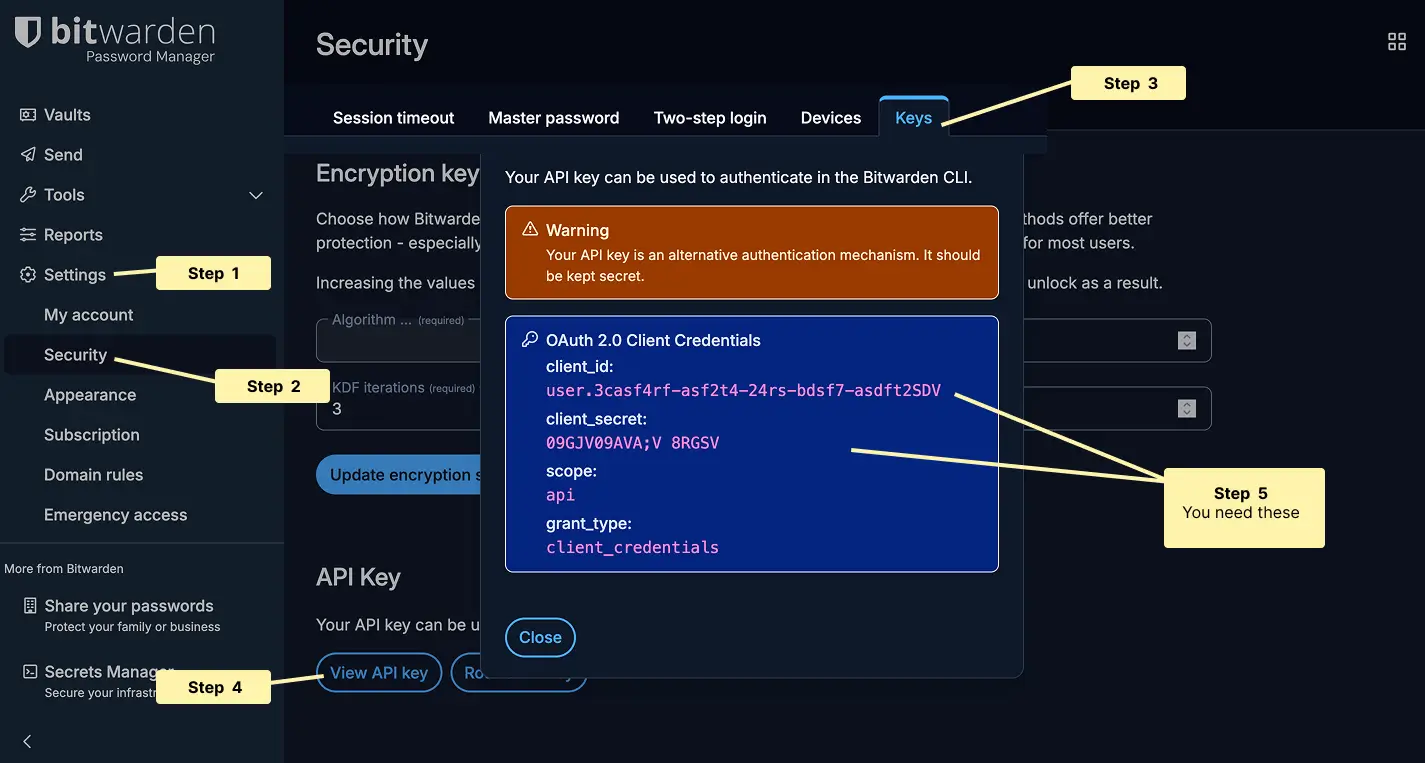
Bitwarden path: Settings → Security → Keys (copy client_id and client_secret).
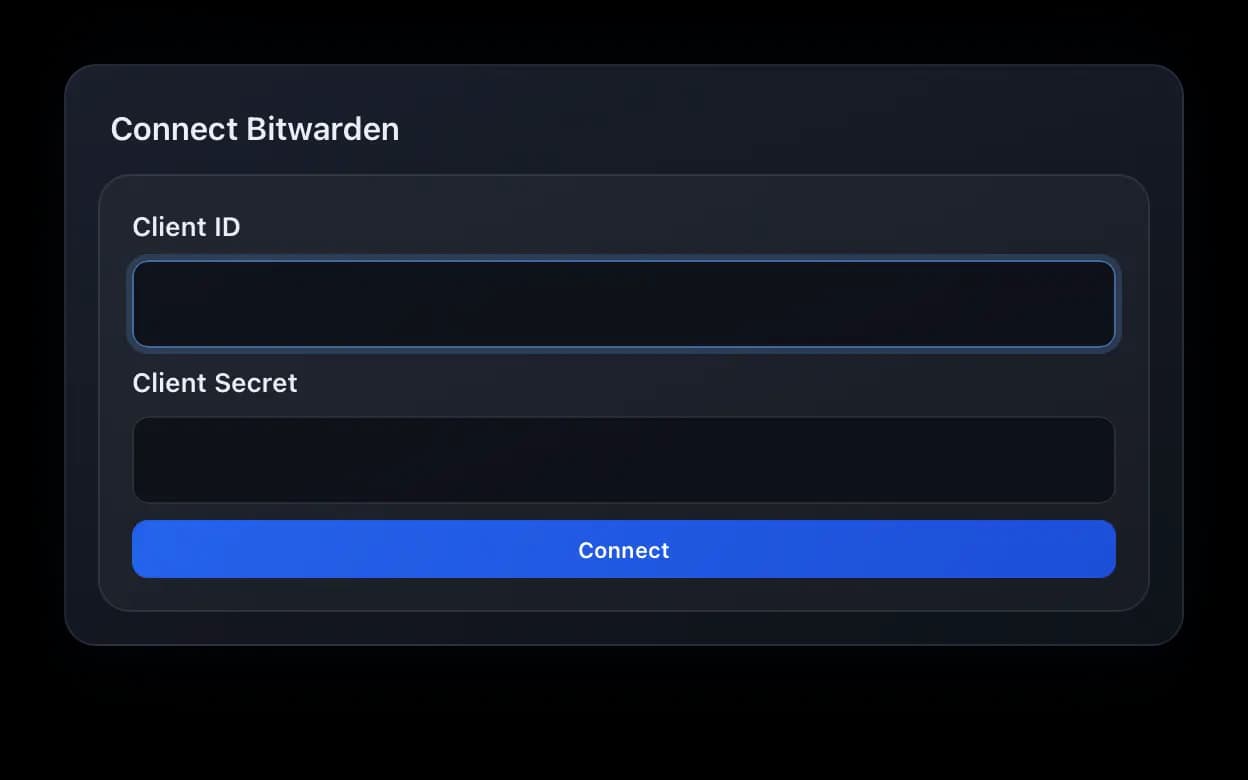
Preview of PWTray first-launch setup screen. Please add your vault client_id and client_secret here.
Security and trust model
Your Bitwarden credentials are handled locally. PWTray does not store your client_id or client_secret. Bitwarden CLI stores required secrets encrypted on your machine.
Never share your API key values publicly.
Need more context? Visit the FAQ or the macOS troubleshooting guide.